Adding a Build
In the XO, users can easily walk through the process of adding a build to the community.
A video tutorial is located at the bottom of this article as well.
A video tutorial is located at the bottom of this article as well.
Step 1
First, locate the left side panel and click on the Lot & Home Sales tab which provides the following screen.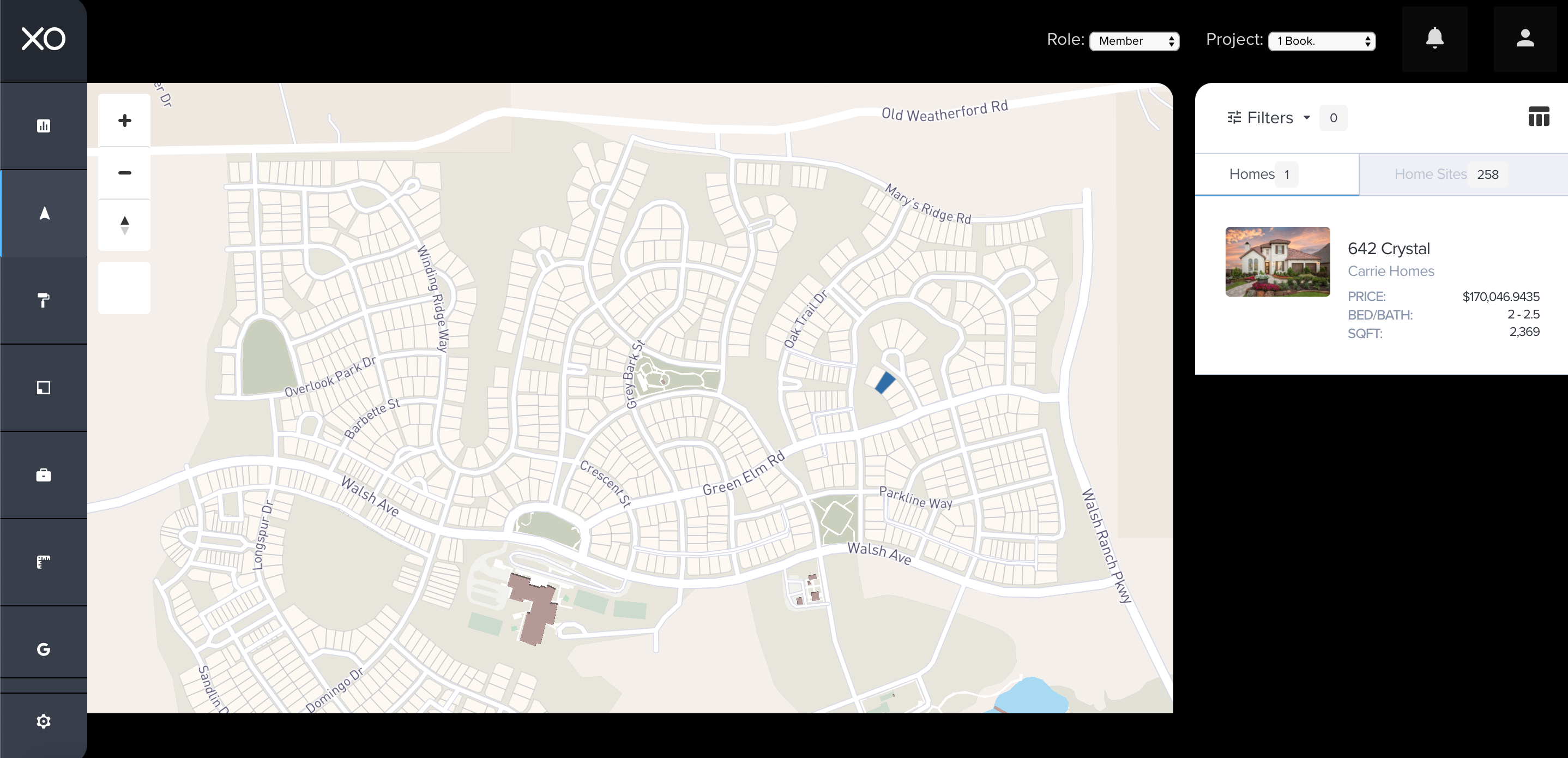
Step 2
Next, place the cursor over the available lot where the sale needs to be added and click on that lot. There are two ways to locate the lot. One way is to locate the lot on the map, (first screenshot), or locate the lot panel on the right and locate the lot (second screenshot).
Step 3
Once the lot is selected, another screen will pop up. Here is where the Add a Build button will appear, highlighted in the RED box below. Click the button to begin adding the build.
Step 4
Within the Build form, is where information regarding the sale will be entered. There are four areas that will need to be completed to complete the form. After completing the necessary fields, click Next Step in the green box in the lower right-hand corner of the form to continue to the next area.
Step 5
Plans and Elevations are where the XO anti-monotony comes into action. Various options will be available or not available based on the community's design guidelines and the Master Plans that have been approved. Notice when selecting a particular Plan/Elevation combination a blue box highlights the one selected. To complete this step, click on Next Step in the green box below in the lower right-hand corner of the form.
Step 6
The next step is regarding Buyer Information. Notice the three questions, Was a Realtor Used in the Purchase?, Marital Status?, and How Many Children? There's an example on completing this step. After selecting the appropriate answers, click on the Next Step button in the green box located in the lower right-hand corner of the panel.
Step 7
Complete the Primary Buyer information. All fields are required to be completed. After filling out the Primary Buyer information, click Next Step in the green box located in the lower right-hand corner of the form.
Step 8 (If necessary)
Complete the Spouse Information as shown in the example below. Again, all fields are required to be completed. After filling out the Spouse information, click Next Step in the green box located in the lower right-hand corner of the form.
Step 9 (If necessary)
If there are children that are included in the family count, please be sure to complete the selections below. After making the selection for the Children information, click Next Step in the green box located in the lower right-hand corner of the form.
Step 10 (If necessary)
If the buyer is using a realtor it is important to capture their information in the Realtor Information. All fields must be completed before submitting the Pre-Sale form. After the necessary fields are completed for Realtor information, click Submit in the green box located in the lower right-hand corner of the form.
** Congratulations! After completing the steps above, you have successfully processed Adding a Build.
Related Articles
How to Add A Build?
How to Add a Build in The XO platform In the XO, users can easily walk through the process of adding a build to the community. A video tutorial can be located at the bottom of this article. Adding a Build Step 1 First, locate the left side panel and ...Adding a Spec Home
How to Add a Spec Home in The XO platform In the XO, users can easily walk through the process of adding a spec home to the community. Adding a Spec Home Step 1 First, locate the left side panel and click on the Lot & Home Sales tab which provides ...Add a Contract to a Build
How to Add a Contract to a Build In the XO, once the Add a Build form is completed and the Architectural Submittal is approved a contract can be added to the Build. Adding a Contract to a Build Step 1 Below is the Homes & Lots page, go to the right ...Submitting an Architectural Submittal for a Build
How to Add an Architectural Submittal for a Build After completing the Add a Build form in The XO, the next step in the process is to submit architectural materials for review. Adding an Architectural Submittal for a Build Step 1 Locate the ...How to Add a Contract to a Build?
How to Add a Contract to a Build In the XO, once the Add a Build form is completed and the Architectural Submittal is approved a contract can be added to the Build. Adding a Contract to a Build Step 1 Below is the Homes & Lots page, go to the right ...