Adding a Spec Home
How to Add a Spec Home in The XO platform
In the XO, users can easily walk through the process of adding a spec home to the community.
Adding a Spec Home
Step 1
First, locate the left side panel and click on the Lot & Home Sales tab which provides the following screen.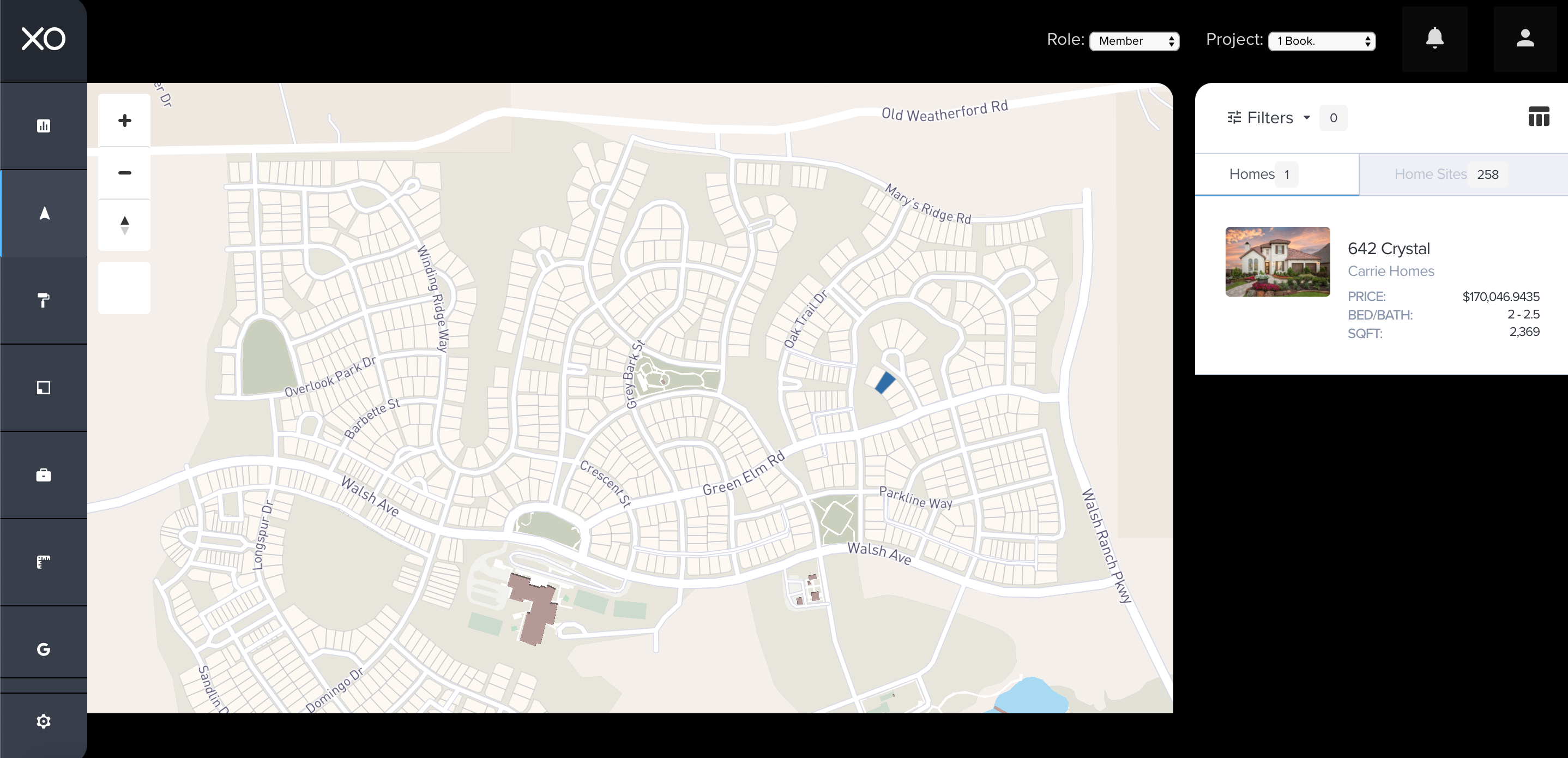


Step 2
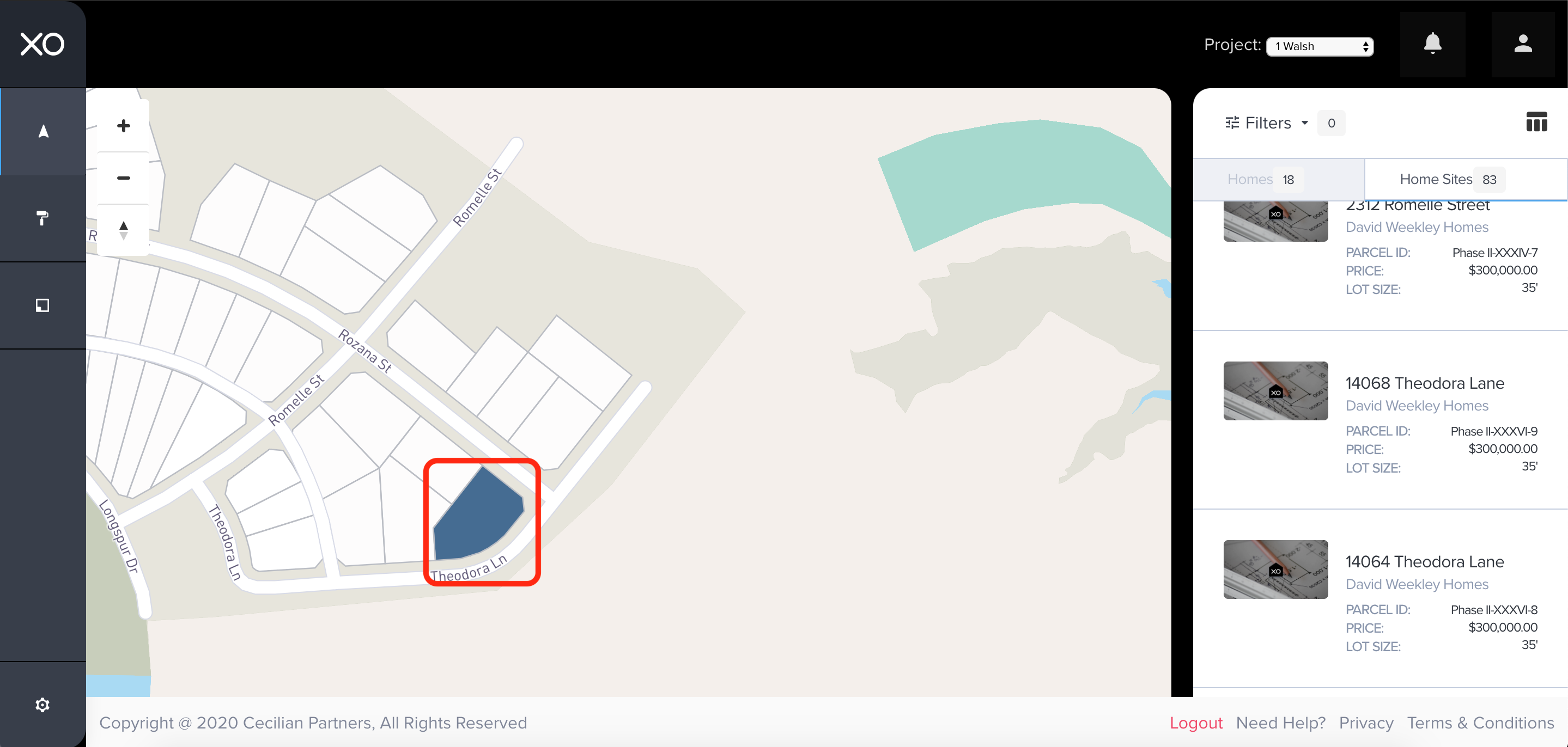
Next, place the cursor over the available lot where the sale needs to be added and click on that lot. There are two of ways to locate the lot. One way is to locate the lot on the map, (first screenshot), or locate the lot panel on the right and locate the lot (second screenshot).
Step 3
Once the lot is selected, another screen will pop up. Here is where the Add a Spec button will appear, highlighted in the RED box below. Click the button to begin adding the build.
Step 4
Within the Spec Home form, is where information regarding the sale will be entered. There are four areas that will need to be completed to complete the form. After completing the necessary fields, click Next Step in the green box in the lower right-hand corner of the form to continue to the next area.
Step 5
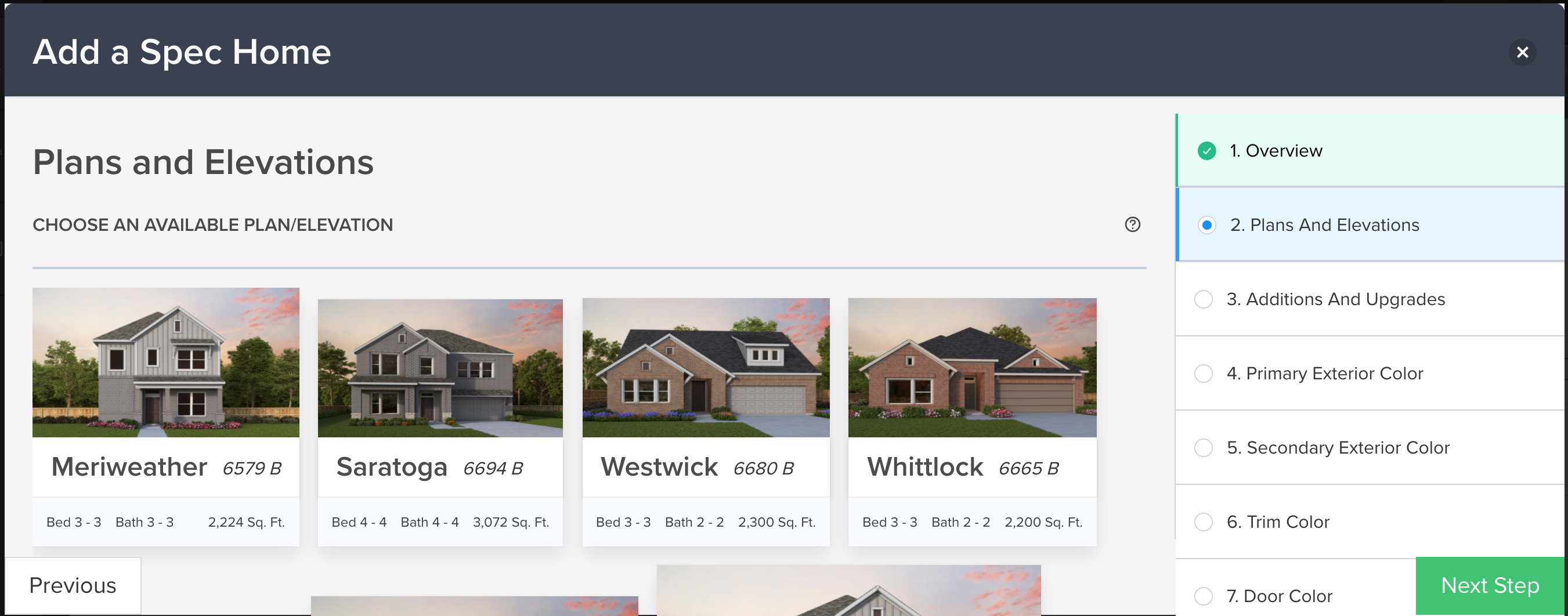
Plans and Elevations are where the XO anti-monotony comes into action. Various options will be available or not available based on the community's design guidelines and the Master Plans that have been approved. Notice when selecting a particular Plan/Elevation combination a blue box highlights the one selected. To complete this step, click on Next Step in the green box below in the lower right-hand corner of the form.
Step 6
Additions/Upgrades - Make any changes necessary in this section. If no changes are necessary, click on Next Step in the green box in the lower right-hand corner.
Step 7
Colors Submission - If necessary, the following color choices (Primary and Secondary Exterior Colors, Trim Color, Door Color, and Roof Color) will need to be selected and corrected. Please update these choices as necessary based on the anti-monotony rules within the community. To complete each area of the color options, click Next Step in the green box located in the lower right-hand corner of the form.
Step 8
Be sure to include a complete set of building plans and other necessary documents requested for the Spec Home. To complete this section, click on Next Step in the green box located in the lower right-hand corner of the form.
Step 9
Summary - The XO will create a summary of the architectural submittal. If additional changes are needed, click in the area listed on the right side of the form in green with the checkmark. If completed, click Submit in the lower right-hand corner of the form. The developer will receive a notification stating an architectural submittal has been resubmitted and is ready for review.
** Congratulations! After completing the steps above a Spec Home as successfully been added and submitted for developer review.
Related Articles
Adding a Contract to a Spec Home
How to Add a Contract to a Spec Home In the XO, once the Add a Spec Home form is completed and the architectural submittal has been approved by the developer, a contract can be added to the Spec Home. Adding a Contract to a Spec Home Step 1 Below is ...How to Add a Spec Home?
How to Add a Spec Home in The XO platform In the XO, users can easily walk through the process of adding a spec home to the community. Adding a Spec Home Step 1 First, locate the left side panel and click on the Lot & Home Sales tab which provides ...How to Add a Contract to a Spec Home?
How to Add a Contract to a Spec Home In the XO, once the Add a Spec Home form is completed and the architectural submittal has been approved by the developer, a contract can be added to the Spec Home. Adding a Contract to a Spec Home Step 1 Below is ...How to Submit an Architectural Submittal for a Spec Home?
How to Submit an Architectural Submittal for a Spec Home When a user needs to Add a Spec Home in The XO, the architectural submittal can be completed from the Add a Spec form. Once the submittal is completed it is automatically applied to the ...Submitting Model Home For Approval
Developer users, check out this article for assigning a lot to a builder for their model home. This step will need to take place prior to home builder submitting their plans for the model home. Step 1 Navigate to the specific lot that a model home ...