Submitting an Elevation
How to Submit an Elevation
 Note: Submitting an elevation is very similar to submitting a Master Plan in the XO!
Adding an Elevation
Step 1
From the Master Plans homepage, select anywhere on the Master Plan tile to add an Elevation. Highlighted in RED is the Master Plan chosen for this example.
Step 2
On the Add An Elevation page, add a name for the elevation and the architectural style of the home. Remember to select NO or YES if the Elevation includes a front porch. Any photos that should be displayed with the new elevation can be uploaded here as well. Once all fields are completed, click CONTINUE.
Step 3
Exterior Materials - Select the materials associated and used for the specific Elevation. The Primary Material used will be the contents of the majority of the house. The Secondary Material is required when adding a new Elevation. Once the materials have been selected, please click CONTINUE.
Step 4
Roof Materials - Select the materials associated and used for the specific Elevation. Once the roof materials have been selected, click CONTINUE to upload the new elevation.
Step 5
Notice the new elevation has been uploaded to the Master Plan selected on the right panel. 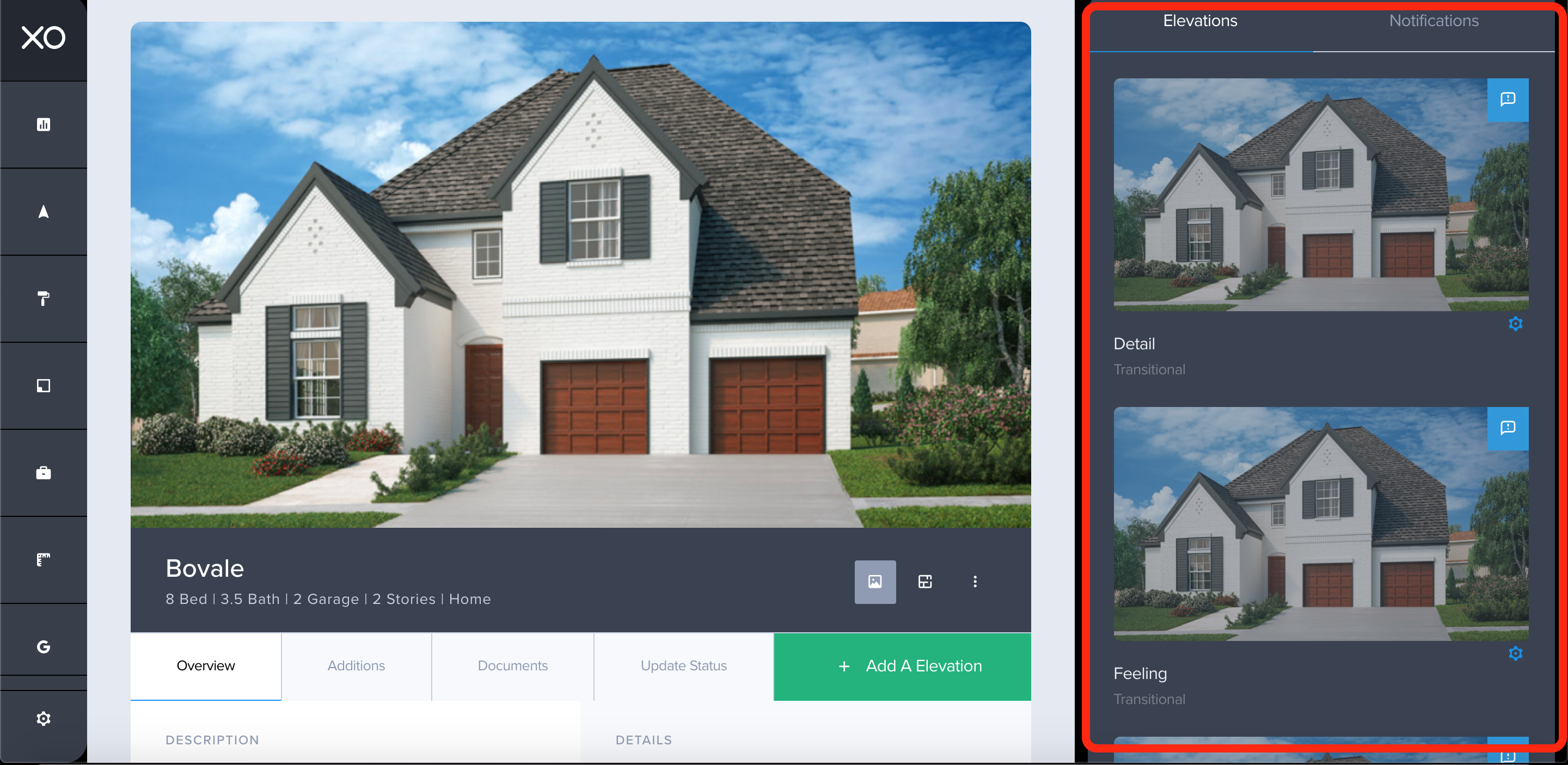
Related Articles
Elevation Photos
How to Attach a Photo to a Specific Elevation When submitting an elevation for review a photo can be attached during that process. However, if a photo was not available at that time or a new one needs to be attached. Below are the steps need to ...Attaching Photo to Elevation
How to Attach a Photo to a Specific Elevation When submitting an elevation for review a photo can be attached during that process. However, if a photo was not available at that time or a new one needs to be attached. Below are the steps need to ...Submitting an Architectural Submittal for a Spec Home
How to Submit an Architectural Submittal for a Spec Home When a user needs to Add a Spec Home in The XO, the architectural submittal can be completed from the Add a Spec form. Once the submittal is completed it is automatically applied to the ...Submitting an Architectural Submittal for a Build
How to Add an Architectural Submittal for a Build After completing the Add a Build form in The XO, the next step in the process is to submit architectural materials for review. Adding an Architectural Submittal for a Build Step 1 Locate the ...Submitting a Master Plan
How to Submit a Master Plan In the XO, users can submit a new master plan for the community. This article will show users how to properly submit a master plan. For a video tutorial, scroll down to view the attachment. Adding a Master Plan Step 1 ...