Attaching Photo to Elevation
How to Attach a Photo to a Specific Elevation
When submitting an elevation for review a photo can be attached during that process. However, if a photo was not available at that time or a new one needs to be attached. Below are the steps need to attach a photo.
Attaching a Photo
Step 1
From the Master Plans homepage, select anywhere on the Master Plan tile that needs the photo. Highlighted in RED is the Master Plan chosen for this example.
Step 2
Once the specific elevation is selected, click on the gear icon highlighted in RED to go to the Edit Elevation page.
Step 3
Uploading Photo - Highlighted in the RED box is where a photo can be attached to the selected elevation. Click on the link BROWSE or drag and drop the photo in the box. Once the photo has been selected, click CONTINUE to exit through the Edit Elevation feature.
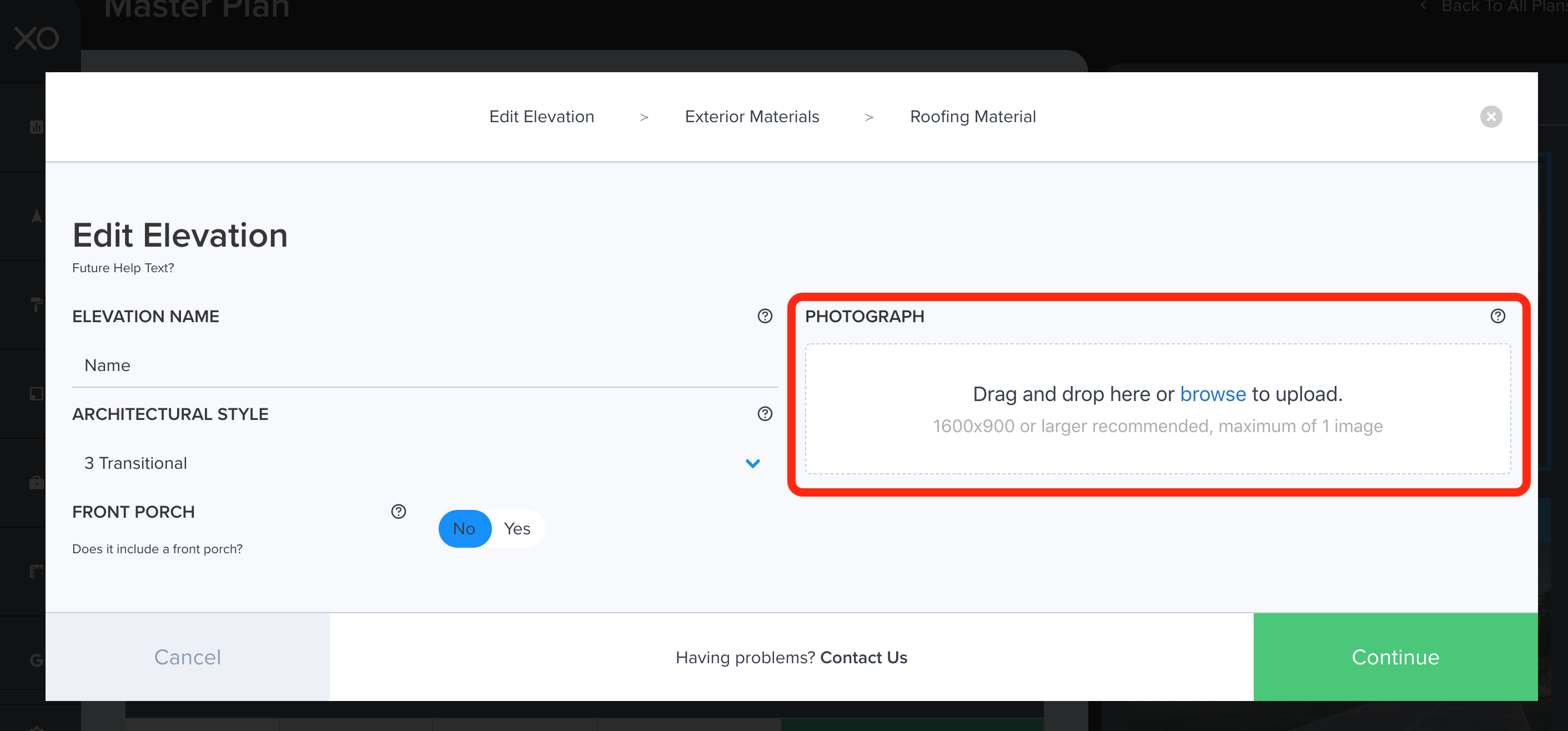
Uploading Photo - Highlighted in the RED box is where a photo can be attached to the selected elevation. Click on the link BROWSE or drag and drop the photo in the box. Once the photo has been selected, click CONTINUE to exit through the Edit Elevation feature.
Step 4
Notice the image that uploaded, highlighted in the RED box. Click CONTINUE to proceed.
Step 5
Click CONTINUE for the next two pages to exit Edit an Elevation.
Step 6
From the Master Plan page, review and confirm the photo has been added to the elevation.
Related Articles
Elevation Photos
How to Attach a Photo to a Specific Elevation When submitting an elevation for review a photo can be attached during that process. However, if a photo was not available at that time or a new one needs to be attached. Below are the steps need to ...How Do I Update A Spec Photo On Consumer Map?
Inventory Photos Inventory photos on The XO feed directly to the consumers-facing map located on the community website. it is extremely important to keep all spec or inventory homes up to date as it creates a better customer experience. The primary ...Submitting an Elevation
How to Submit an Elevation Note: Submitting an elevation is very similar to submitting a Master Plan in the XO! Adding an Elevation Step 1 From the Master Plans homepage, select anywhere on the Master Plan tile to add an Elevation. Highlighted in RED ...Resubmitting a Plan/Elevation
How to resubmit a plan/elevation Resubmitting a Plan/Elevation for Approval If a Master Plan/Elevation was denied by the developer, users can resubmit the plan for approval in the XO. Simply follow the steps below. Step 1 Go to the Master Plans ...How Do to Approve an Elevation?
When a builder submits a new elevation into the XO, the approved developer users have the ability to review and approve new elevations in the XO. This helps speed up the approval process when building a home. Step 1 First, go to the Master Plans page ...